Edit a gesture
The gear button (⚙) on a gesture’s row opens its window. You change the gesture’s settings here and see the result on your own movement at once.
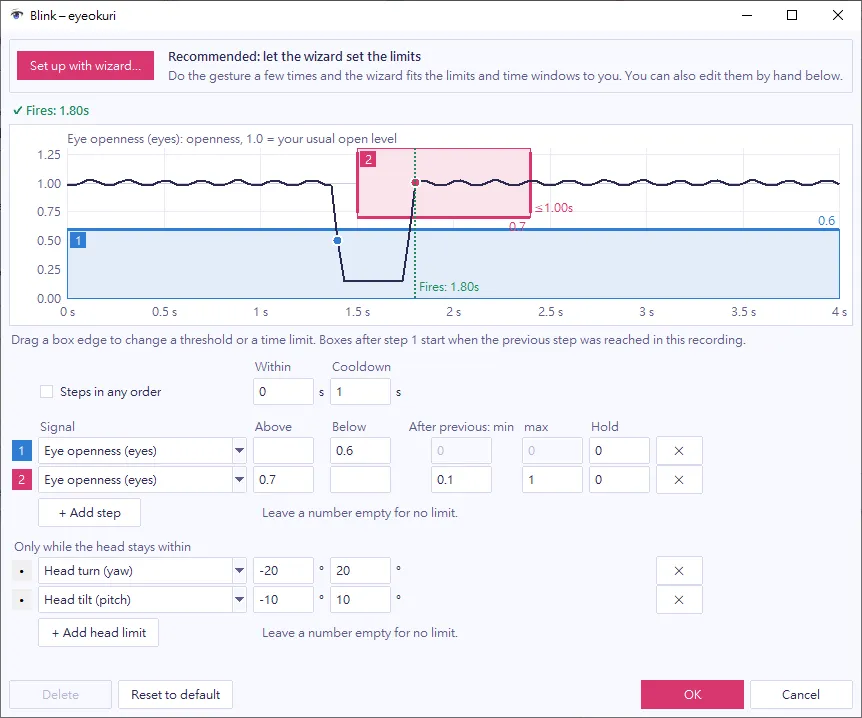
Read the plot
Section titled “Read the plot”A gesture is a list of steps. Each step is a box on a plot of one signal over time, and a step counts the moment the signal enters its box. The signals are:
- Eye openness (
eyes): how open your eyelids are. 1.0 is your usual open level. - Wink (
wink): how open your right eye is minus your left, each relative to its usual level. It stays near 0 with both eyes open or both closed. Closing only your left eye takes it toward +1, and closing only your right eye toward −1. - Head tilt (
pitch): how far your head tilts up or down, in degrees. Positive is down. - Head turn (
yaw): how far your head turns to the side, in degrees. Positive is your left. - Side tilt (
roll): how far your head tilts toward a shoulder, in degrees. Positive is toward your left shoulder.
The blink in the screenshot has two steps. Box 1 is “eyes below 0.6”, and box 2 is “eyes above 0.7, between 0.1 s and 1 s after step 1”. The dark line is your signal over the last 4 seconds.
Test your settings
Section titled “Test your settings”- Open the gesture window and do the gesture.
- Read the line above the plot. It says
✓ Fires: 1.83s, or why the gesture doesn’t fire, for example✕ Step 2 came 0.07s after step 1 (too short, min 0.10s). - Change a setting and read the line again. It updates as you change the settings.
The plot keeps only the eye and head numbers, in memory. It never keeps images.
Change a limit
Section titled “Change a limit”You can change a limit in two ways:
- Drag a box’s top or bottom edge to change its threshold. Drag its left or right edge to change the time allowed after the previous step.
- Type the numbers in the steps table below the plot.
Each step has its own settings, so changing one step doesn’t affect the others.
| Column | Meaning |
|---|---|
| Signal | The signal the step watches. A step can also watch another gesture and counts when that gesture fires. |
| Above, Below | The box. Leave one empty for a box that is open on that side. |
| After previous: min, max | The time allowed since the previous step. 0 means no limit. |
| Hold | How long the signal must stay in the box before the step counts. |
Above the steps table:
- Within is the time allowed from the first step to the last. 0 means no limit.
- Cooldown is the time after the gesture fires during which it can’t fire again.
- Steps in any order lets the steps happen in either order. The head shake uses it, so you can start on either side.
Keep the gesture from firing while you look away
Section titled “Keep the gesture from firing while you look away”Moving your head often makes you blink, and a turned or tilted head also changes how open your eyes look. The Only while the head stays within rows limit the head angle for the whole gesture. While your head is outside a limit, the gesture can’t start, and one in progress is canceled. The log says why, for example blink: canceled (head yaw +25° outside its limit).
By default, a blink counts only when your head is within 20° of your usual pose sideways and 10° up or down. Remove the rows to count blinks at any head angle.
Save or cancel
Section titled “Save or cancel”eyeokuri uses your changes as soon as you make them. They aren’t saved until you finish:
- OK saves the settings to the config file and closes the window.
- Cancel goes back to the settings you had when you opened the window and closes it. Closing the window another way works like Cancel, and asks first if you changed something.
- Reset to default puts a built-in gesture’s settings back. It keeps the gesture on or off as it is. When you open the window from a program’s tab, the button reads Reset to base config and puts back the base config’s settings.
- Delete removes a gesture you added. If another gesture uses it as a step, remove it from there first. You can’t delete a built-in gesture. Turn it off instead. In a program’s tab, you can delete only a gesture you added in that tab.
Saving rewrites the config file with only the values that differ from the defaults, so comments in the file are not kept.
Combine gestures
Section titled “Combine gestures”New gesture… in the main window adds your own gesture. Set a step’s Signal to Gesture: Nod down, for example, to build a gesture that needs another gesture first, such as a blink followed by a nod within 1.5 s.
When one movement matches several gestures, each gesture fires. A blink followed by a nod also fires the blink, so it sends the blink’s key too.