Use the main window
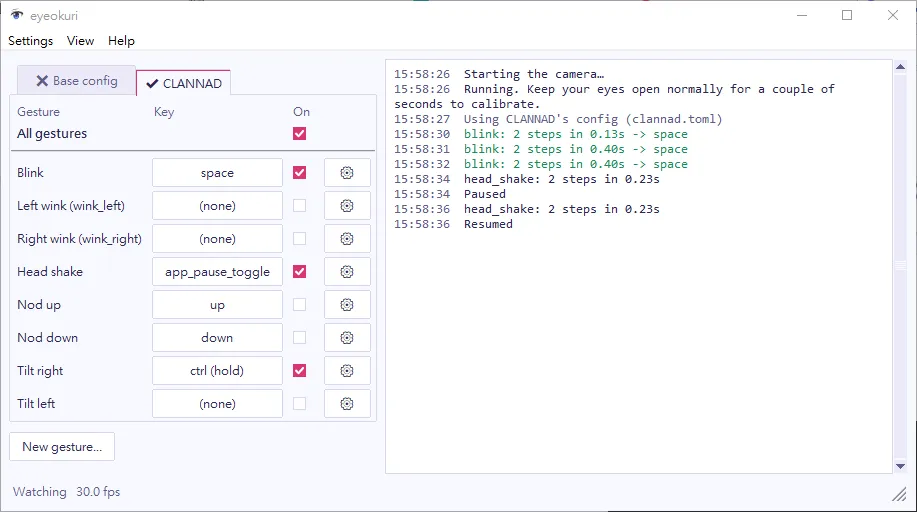
The main window lists your gestures on the left and shows the log on the right. Start it from the Start menu after you install it, or with eyeokuri-gui if you run from source.
Turn gestures on and off
Section titled “Turn gestures on and off”Each gesture row shows the gesture’s name and has three controls:
- The button in the Key column shows the key the gesture sends and opens the key window. See Choose what a gesture sends.
- The checkbox in the On column turns the gesture on or off. eyeokuri saves the change right away, to the config of the tab you’re in. See Use different keys for each program.
- The gear button (⚙) opens the gesture’s window. See Edit a gesture.
New gesture… asks for a name, then opens a gesture window for the new gesture.
Choose what a gesture sends
Section titled “Choose what a gesture sends”The button in a gesture’s Key column shows what the gesture sends, with (hold) after a key it holds down. Select it to open the key window. In Key, type the key, choose it from the list, or select Press a key… and press the key or combination. OK saves the change, and Cancel goes back to the key you had.
- A key, such as
enter,space,up,f5ora. - A key with modifiers (
ctrl,shift,alt,win), joined with+, such asctrl+s. - A mouse input:
mouse_left_click,mouse_right_clickormouse_wheel_down. app_pause_toggle, which pauses or resumes eyeokuri.(none), which sends nothing. Use it for a gesture that other gestures use as a step.
Hold a key down
Section titled “Hold a key down”Some games skip text while you hold ctrl. The Send list in the key window sets how the gesture sends its output:
- Press once (press): eyeokuri presses and releases the output each time the gesture fires.
- Hold while it lasts (while): eyeokuri presses the output when the gesture fires and lets go when the gesture ends. The log says
look: ... -> ctrl held, then-> ctrl released. The gesture ends when the signal leaves the box of the step that completed it, or, if that step is another gesture, when that gesture ends. Turning your head outside the gesture’s head limits also ends it.
For example, to skip text while you keep your left eye closed, give a gesture one step in its gesture window: Wink, Above 0.25, Hold 0.3 s. In its key window, set Key to ctrl and Send to Hold while it lasts. Ctrl goes down once your left eye has been closed for 0.3 s and comes up when you open it. The built-in right tilt (tilt_right) holds ctrl this way while your head is tilted toward your right shoulder.
eyeokuri also lets go when you pause, when your face leaves the camera, when you open a window that edits settings and when eyeokuri stops.
You can hold a key, a key combination, mouse_left_click or mouse_right_click. A held key is down for every app, not only the game: if you switch windows while it’s held, what you type there gets ctrl too. Several gestures can use the same key: if two gestures hold ctrl, it stays down until both have let go. If you end eyeokuri from Task Manager while a key is held, press that key once to release it.
Use different keys for each program
Section titled “Use different keys for each program”Each game or other program can have its own config. Two tabs sit above the gesture list:
- Base config holds the settings every program uses.
- The second tab is for the program you used last, other than eyeokuri. It shows that program’s window title.
A ✔ marks the tab whose settings eyeokuri uses now. Base config shows a ✖ while a program’s own config is in use. In the screenshot at the top, CLANNAD is in front, so its tab has the ✔, and a blink sends space there while the base config still sends enter.
To give a game its own keys:
- Switch to the game, then back to eyeokuri. The second tab reads Create for:
, and eyeokuri still uses the base config. - Select that tab and change a key, a checkbox or a gesture. eyeokuri saves a config for the game, and the tab becomes ✔
.
From then on, eyeokuri uses that config whenever the game is in front, and the base config when another program is. Switching to eyeokuri, the taskbar or Alt+Tab keeps the game’s tab, so you can change its settings. eyeokuri recognizes the program by its executable file name, such as CLANNAD.exe, so a changing window title doesn’t matter. Games that run on the same executable name share one config.
A program’s config saves only what you changed from the base config, so a change in Base config reaches every program that doesn’t change the same setting. In a program’s tab, Reset to base config in the gesture window takes a gesture back to the base config’s settings, and Delete works only for gestures you added in that tab. Pause and the settings in the config window apply to all programs.
Pause eyeokuri
Section titled “Pause eyeokuri”The All gestures checkbox at the top of the list pauses and resumes eyeokuri. The p key and a head shake do the same.
While paused, gestures still fire but only appear in the log, for example blink: ... -> enter (paused, not sent). Pause when you want to try gestures without sending input to your game. eyeokuri saves the pause state, so the next start begins paused if you left it paused.
Read the log
Section titled “Read the log”The log shows:
- Gestures that fired, in green, for example
blink -> enter. - Gestures that were detected but didn’t fire, in gray, with the reason, for example
blink: step 2 came 0.07s after step 1 (too short, min 0.10s). - Pauses and resumes.
The reasons tell you which setting to change. To stop logging gestures that don’t fire, clear log_rejected in the config window.
The status bar at the bottom shows what eyeokuri sees: Calibrating…, Watching, Eyes closed, No face or Paused, and the frame rate. While you edit a gesture, it shows Gestures off while editing.
Open the other windows
Section titled “Open the other windows”| Menu | Entry | Opens |
|---|---|---|
| Settings | Config… | The config window for the camera, sounds and logging. |
| View | Camera view… | A live view of your camera with your eye outlines and signal values. |
| Help | About eyeokuri… | The license and third-party notices. |
The camera view appears next to the main window. eyeokuri draws it only while the window is open, so close it when you don’t need it to save CPU.
While a gesture, key, config or wizard window is open, gestures are off and the main window’s controls are disabled. Only one of these windows can be open at a time.
If the camera stops
Section titled “If the camera stops”If the camera stops sending frames, for example when it disconnects for a moment, eyeokuri reopens it every second until frames come back. Gestures aren’t detected during the gap. The same applies if you start eyeokuri before you plug the camera in: plug it in and eyeokuri picks it up within a few seconds, with no restart.